

By default the Windows 10 File Explorer opens to the quick access folder by default, personally i dont find that at all useful and would sooner it open “This PC” (My Computer) so I can have easy access to hard drives, connected devices and network shares.
Thankfully the Windows 10 file explorer can be made to open This PC by default, it even has its own setting hidden away, so no registry hacks are required like on Windows 8.
To make the Windows 10 File Explorer open this PC by default you need to do the following:
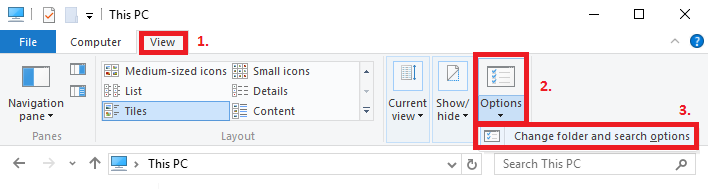
- On any open file explorer window click the view tab
- Then click options > change folder and search options
- Now simply change the open file explorer option to “This PC”
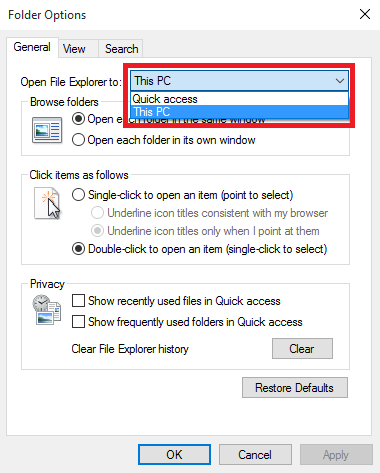
When you click on ok you have done it, now when you open a new file explorer windows it will default to opening “This PC” from now on. I hope this helps someone out, again easy once you know where to look!
